While everyone is loving and embracing the various VR tech solutions being churned out yearly, there’s a need to step back and reanalyze the effect of these techs on our eyes. Recently, many have expressed concerns about VR headsets causing myopia. However, there haven’t been any verified reports on this matter. Nevertheless, it is essential to adopt best practices to keep your eyes safe if you’re a VR enthusiast and gadget user.
VR Eye Strain at Work
If you wear a VR headset for a long time, you might feel strained in one eye or both, especially if you’re still new to using VR gadgets; this is generally acknowledged as experiencing a “VR Hangover.”
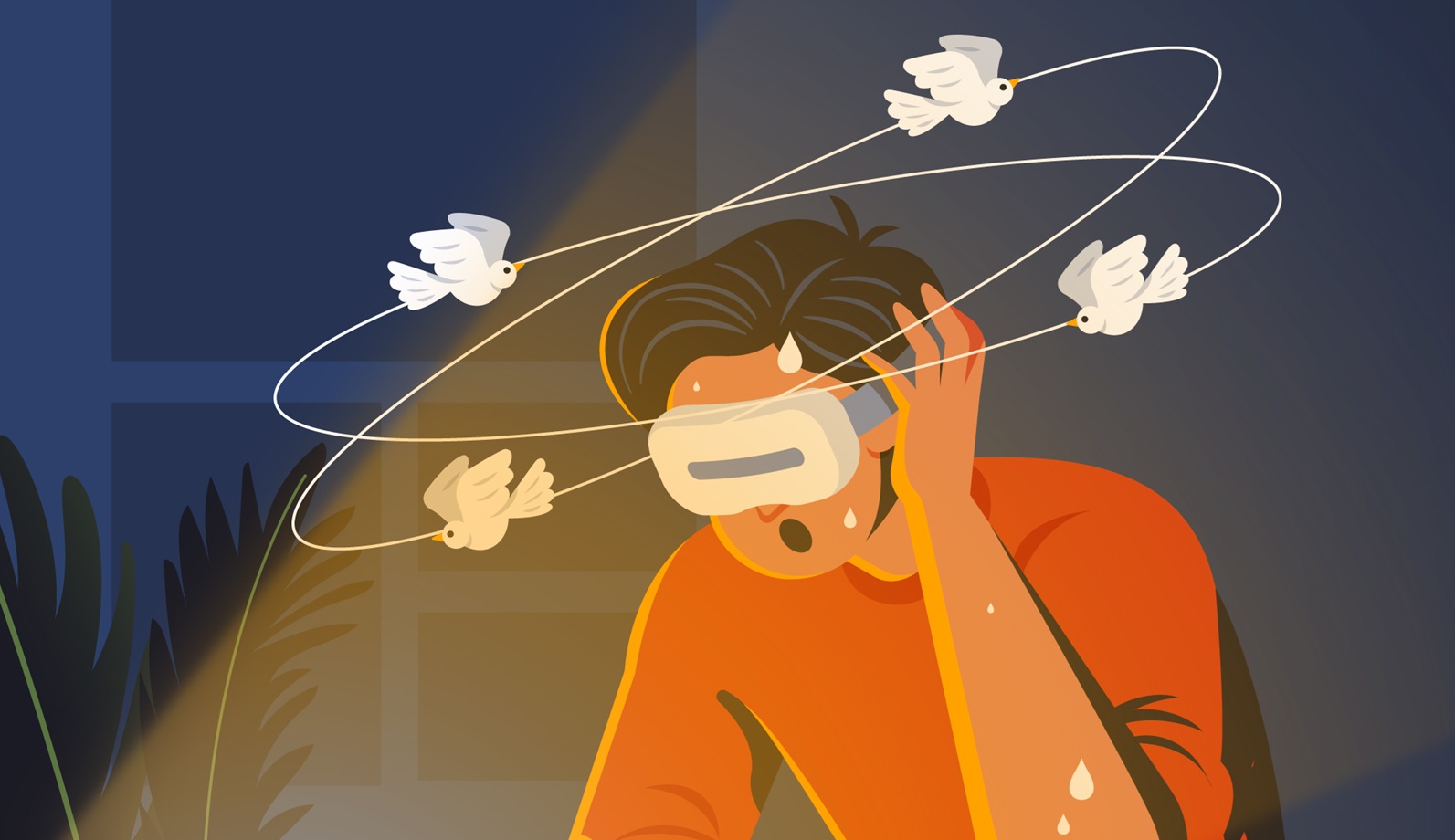
Whether you’re using the VR device for gaming, learning, content creation, or virtually anything at all, this still applies. Even so, some individuals allege that they experience blurred vision, headaches, dry eyes, or a foggy focus after removing their VR headset(s).
VR eye strain typically happens because these devices tend to bring displays much closer to the eye, and most of the time, you’d fight to focus on eye on much closer objects that are not farther than 4ft
Well, there is no reported case of VR headsets leading to permanent or serious eye problems, but then, the strain and headaches some people get from wearing the devices over a long time can get so severe and cause temporary discomfort.
The Ultimate Guide to 8-Hour Productivity
For people who use VR for work, here’s a pro guide to achieving up to 8 hours of productivity, or even more, with any VR device, headset, or gadget. But first, let’s explain why the 20-20-20 standard monitor rule fails in 3D environments.
Why the Traditional “20-20-20” Rules Fail in VR
The standard 20-20-20 rule, which is to use a screen for 20 minutes, then take your eyes off the screen and look at something 20 feet away for 20 seconds, can only be easily achieved when you’re looking at a flat screen (TV, monitor, phone, or smart screens). This rule actually forces your eyes to relax and not be overwhelmed by the rays from your display. But in 3D VR environments, this rule can’t just work.
In VR, there’s a situation referred to as Vergence-Accommodation Conflict (VAC), where vergence refers to how your eyes turn inward/outward to fuse a stereo image, and accommodation refers to how your eye lens changes shape to focus on what you’re looking at. Now, the conflict aspect is when these scenarios don’t work in pari passu.
Vergence-Accommodation Conflict (VAC) is the core reason VR devices seem to produce unusual eye fatigue and discomfort. It occurs when your eyes converge on a virtual object that appears “near,” and forces your brain to focus there, but at the same time, the VR headset’s optics keep the physical screen at a fixed focal distance. So now, your eye muscles are working in conflicting modes, and over time, this leads to having a VR hangover.
More so, because VAC persists even when you “look far” inside VR, a 20-second glance at a distant object in the virtual scene usually doesn’t reset accommodation the way it would on a physical monitor. In fact, the cues inside the headset would always trick your eyes into a near-work state even when content appears distant.
The Modified 20-20-20 Rule for Immersed & Workrooms users
Well, the standard rule may not work, but that doesn’t mean you shouldn’t take a break when using VR headsets for work; you still need those micro-breaks for your eyes and vision clarity. So, here’s a modified 20-20-20 rule, exclusive for VR users.
Step One: Take a Break While Still Wearing The Headset
You should take a break every 20 minutes: do a 20-second visual micro-break inside the VR environment; you should shift your gaze intentionally, blink about 20 times or more, and scan the virtual horizon.
Step Two: Remove the Headset for Some Time
Then again, every 60 minutes, take a 5-minute physical break where you remove the headset entirely to see the real world; you can have a walk around and try to focus on real-life objects at least 3–6 meters away, and blink intentionally all the while. Don’t forget to drink some water, too.
Step Three: Touch Some Grass and Get Fresh Air
If your work lingers, at 3–4 hour intervals, take a longer 15–20 minute break and go outside to get some fresh air, and perhaps, get a light exercise, and drink water, too. Making sure you’re hydrated all the while when using a VR headset is very important to avoid dry eyes.
The Hydration Link
Reports show that immersion suppresses blinking; staying locked in on VR environments can reduce one’s blink rate from around approx. 18 blinks per minute in natural conditions to around 10.8 blinks per minute, a roughly 40% drop.
Also, lower blink rates can lead to instability and evaporative dry eye symptoms, which amplify the sensation of strain and blurry vision. This is why you must have to hydrate all the time you take a break while using VR headsets or any VR device that covers your eyes.
Immersed vs. Workrooms: Which is Better for Your Eyes?
Both Immersed and Meta Horizon Workrooms are built for productivity and available for free, but then, each of them have their unique advantages and trade-offs.
Immersed is pretty much more flexible, allowing up to 5 virtual screens or more, along with floating windows with no gridlock and personalization. Immersed appears to be a perfect choice for individuals who work with multiple screens at a time. However, it is buggy and less feature-rich than Workrooms.
Meta Workrooms, on the other hand, is quite simpler, more integrated, and offers a more reliable experience, especially for teams, and it supports hand tracking. Workrooms doesn’t offer as many virtual screens as Immersed does, nor does it allow for free-flow, non-gridlock float windows, but it is the best for teams and collaborative workspaces, thanks to the enterprise features.
Font Rendering & “Sweet Spot” Optimization
In VR, sweet spots are the headset regions with the highest pixel density and optical clarity, also referred to as the foveal alignment point. Fonts and UI elements that fall inside that sweet spot will be sharper, and peripheral placements may look soft.
With Immersed, you can adjust your VR headset’s IPD/lens alignment to bring critical text into the highest clarity region—the sweet spot. The Immersed platform does allow for a lot of customization, including font rendering and adjustments.
Meta Workrooms seems to focus more on spatial collaboration and integration with the Meta ecosystem, while providing stable, consistent font rendering for shared documents. However, ultimately, it is constrained by headset optics and your IPD/fit.
Workrooms shines in frame-of-reference consistency for meeting contexts, while Immersed gives more granular control of virtual monitor sizing and pixel parity. Both are good in their focused aspects.
4K Virtual Display Utility in Immersed
Immersed claims to offer high-resolution virtual screens, and, depending on your hardware, you could get up to five 4K virtual displays. However, in an actual sense, VR resolution is constrained by the headset’s native pixel density, compression, and the PC streaming pipeline. So, in reality, the “4K virtual display” is obtainable when your headset supports it, else, what you’d get is an oversized but blurry text.
Some Hardware Hacks to Reduce Fatigue
1. IPD (Interpupillary Distance) Calibration — “the 1-mm rule.”
Adjust the in-headset IPD in small increments (1mm per increment) until you find the clearest, most comfortable focus. Don’t eyeball it: move the dial slowly and test a small block of text at different positions.
2. Brightness, Color Temp, and “Comfort Mode.”
Reduce your headset brightness to a level that preserves contrast without overwhelming your pupils. Some headsets offer a night mode or warm color temperature option; choose it; this won’t eliminate strain totally, but can help subtly.
3. Facial Interfaces: Ventilation vs. Light Leak
Chasing third-party facial interfaces and replacement pads can affect your VR experience. Instead, look out for headsets that are designed in a way that improves airflow to reduce fogging and sweat accumulation, and maintain a snug seal to block distracting light leaks.
Conclusion
Conclusively, here’s a checklist for a strain-free virtual office:
- Configure your virtual monitor resolution so that on-headset pixel density is close to the original monitor. Avoid oversized virtual displays that exceed per-eye pixels.
- Adjust IPD slowly, in 1mm increments, until you achieve the level of sharpness intended.
- Set a blinking reminder and don’t forget to take natural breaks.
- It’d be best to schedule the most attention-demanding visual tasks early when your eyes are freshest.